Difference between revisions of "Guides:Cartography and stamps"
(Add cartography bugs) |
|||
| Line 203: | Line 203: | ||
[https://forum.wurmonline.com/index.php?/topic/209288-cartography-table-bugs/&do=findComment&comment=2054427 Copy map does not register to the repeat action slot.] | [https://forum.wurmonline.com/index.php?/topic/209288-cartography-table-bugs/&do=findComment&comment=2054427 Copy map does not register to the repeat action slot.] | ||
| + | |||
Report #: N/A | Report #: N/A | ||
Revision as of 07:28, 16 December 2025
 |
Note: This article is the opinion or suggestion of one or more players. Information in player-made guides are not maintained by the Wurmpedia staff. It is subject to player opinions, and information may not be factually accurate or up-to-date. For updated game mechanics information, check the main namespace articles. |
Cartography, the cartography table, and stamps when combined can create an amazingly vibrant atlas.
Contents
- 1 Cartography
- 2 Cartography Table
- 3 Stamps
- 4 Cartography Related Bugs
- 4.1 Cartography Table
- 4.1.1 Ink brush enchants and rarity do not add any advantages
- 4.1.2 Slots available for combining maps do not change based off table quantity
- 4.1.3 Placed stamp box contents are not included in stamp interface without stamp in table
- 4.1.4 Atlas placed on the cartography table shows all maps in the combined interface, but results in error when attempting to combine
- 4.1.5 Copy map does not register in repeat action slot
- 4.2 Opal Stamps
- 4.1 Cartography Table
Cartography
Skill gains
Skill gains from creating maps are limited to an area over a time period of a month or more
Dev comments [1]
The first survey that your character does of an area will always give full gains, after that re-surveying that area will be less gains depending on how long ago you surveyed there. For full skill-gain it's expected that you'll survey a new area each time (about 80 tiles between centre locations of each survey, so there's little overlap) or only re-surveying the same area every few months.
Additional [2]
They're tracked per character, and get back to "normal" gains for the time spent after a month (normal in this case is the usual skill ticks you'd get based on action time like other skills). Between 1 and 2 months time that multiplier will continue building up to the same value you get from the first survey recorded in that area (which gives more skill per action time than "normal"). On top of this is an additional modifier for how far from the 'best' tile you are when continuing the survey (which you can get some info from hovering the indicators).

TL:DR: Best time between surveying the same area for maximum gains is 2 months, when repeating the area less than one month apart you'll gain less than the normal skillgain rate.
Cartography Table
- WIP - Pending updates on forums posts on proper table usage.
Stamps
The magic is in the mark. Stamps can be reused by imprinting with new information.
NOTICE: Updating a stamp with new information will not update any previously stamped maps.
Map stamps
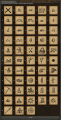
Stamp Patterns

- Activate gem
- Right click on stamp
- Select Set gemstone
Village Stamp (Sapphire)
Sapphire embedded stamps are imprinted from a settlement token. Using this stamp on a map after imprinting will add the deed name, mayor name, and motto information.
Imprinting
- Locate a settlement token in the game world
- Activate the stamp
- Right click the settlement token
- Select Imprint stamp
- Note: You need deed permissions to imprint.
Structure Stamp (Ruby)
Ruby embedded stamps are imprinted from a structure. Using this stamp on a map will add the the structure information.
Structures types that can be imprinted
Imprinting
- Locate a structure token in the game world
- Activate the stamp
- Right click the settlement token
- Select Imprint stamp
Annotation Stamp (Diamond):
Diamond embedded stamps are imprinted with a maximum of 120 characters.
Imprinting
- Right click on stamp
- Select Imprint stamp
- Add annotation to text input (120 character limit)
- Click accept
Time Stamp (Emerald)
Emerald embedded stamps are imprinted with a label and a reference date and time. This date and time information can be imprinted in two different ways.
- Static Time: Full date and time displayed on graphic mouse over
- Countdown Timer: Shows time remaining or time passed since the imprinted date
Imprinting
- Right click on stamp
- Select Imprint stamp
- Enter the appropriate data
- Validate the data using the available button
- Click accept
- Note: The UI for this is difficult to use.
- Note: Does not include a Wurm time option.
Linked Stamp (Opal)
Opal embedded stamps are imprinted with information from original or copied maps. This is a complex tool allowing you to build a collection spanning multiple atlases with links between each other and to the world map.
The stamp has two modes of operation: World link and map link.
World link is to stamp the graphic on the in game world map linking to a map in an atlas and is accessed by right clicking the stamp.
Map link is to stamp the graphic on a map in an atlas to a different map in an atlas and is accessed by activated the stamp and right clicking a map. Linked maps do not have to be the same atlases.
Imprinting World Link
When in world link mode, the right click menu of an opal embedded stamp will contain one of the following choices:
- Link to world map - This is what appears the first time you use a stamp. It will bring up the world map allowing you to mark the in game map with the stamp image.
- Update world map link - This allows you to update the world map location of this stamp. This appears when the stamp is in world link mode and has already been imprinted.
- Change to world map link - This sets the stamp mode to world link. This only appears when the stamp is in map link mode.
After selecting a location on the map you must then stamp the map you want the world map to link to. Activate the stamp, right click, stamp map
Imprinting Map Link
To enter map link mode, activate the stamp and the right click menu of a map in an atlas will contain one of the following choices:
- Link to map - This is what appears the first time you use a stamp. It will imprint the map information to the stamp allowing you to link to it from another map.
- Update map link - This allows you to change which map is linked to the stamp.
After you have imprinted information to the stamp, you then use that stamp on a map you wish to link from.
When in map link mode, the right click menu of the opal embedded stamp will allow you change the stamp back to a world map link.
Cartography Related Bugs
Cartography Table
Ink brush enchants and rarity do not add any advantages
Forum Post: Ink brush enhancements and copying maps
Report #: N/A
Expectation: Enchanting or having a rare brush should impact copy time of maps as the ink brush itself takes damage during the copy process.
Reproduction Steps:
- Add map to copy to inventory
- Add ink brush with no enchants or rarity to cartography table
- Copy map and verify time to copy
- Replace ink brush on table with BotD enchant
- Copy map and verify time to copy
Results: No change to map copy time or perceived skill gains.
Slots available for combining maps do not change based off table quantity
Forum Post: Slots available for combining do not change based off table quantity.
Report #: N/A
Expectation: Per the original wiki article on the cartography table, the quality of the table should change the quantity of maps you can store within it for combining into a new map. This appears that the table should behave similar to the tool belt for its limitations, where a low quality table can only combine a few maps, but a fantastic max quality table should be able to combine 15 maps.
Reproduction Steps:
- Create table with quality level greater than 50
- Try to add 5 painted maps
Results: No matter the table quality, the number of painted maps allowed is 4.
Placed stamp box contents are not included in stamp interface without stamp in table
Report #: N/A
Expectation: Stamp map should appear in the drop down list when a box of stamps is placed on the table regardless if a stamp is in the table itself.
Reproduction Steps:
- Create 2 pottery stamps and fill with dye/ink
- Create stamp box and place on table
- Add 1 stamp to stamp box
- Active map in inventory
- Attempt to stamp map using right click on the table
Results: Stamp map is not available when a stamp is not in the table itself
Additional: If you add a stamp to the table itself, the stamp map option returns and all stamps in the stamp box become available for use.
Atlas placed on the cartography table shows all maps in the combined interface, but results in error when attempting to combine
Report #: N/A
Expectation: Maps inside an atlas should be available as sources to combine
Reproduction Steps:
- Add painted maps to atlas
- Place map on table
- Right click and choose combine maps
Results: Combine map action returns 'You can't find the {map name} in the cartography table to combine it.'
Additional: This occurs if you have a map in the table or not
Copy map does not register in repeat action slot
Copy map does not register to the repeat action slot.
Report #: N/A
Expectation: Copying a map should allow you to use repeat the action using the keybind or right click menu
Reproduction Steps:
- Add map to inventory
- Activate mapwhichever
- Right click on table and select copy map
- Attempt to use repeat action
Result: Repeat action remains to previous action and never updates.
Opal Stamps
Map links remain on world map after dropping bookshelf containing atlases with links Report #: N/A
Reproduction Steps:
Opal stamps ignore stamp quantity on map. Report #: N/A
Reproduction Steps:
